
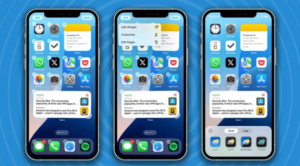
Apple’s iOS 18 brings a host of exciting new features to enhance the overall user experience. Among the changes, the ability to customize various aspects of your iPhone’s layout, apps, and controls is a game-changer. Whether you want to tweak the look and feel of your device or improve its functionality, iOS 18 offers a wide range of options. In this guide, we will walk you through how to customize lock screen buttons, change Control Center layout, manage Mail app categories, lock and hide apps with Face ID, enhance dialogues in the Apple TV app, and even rearrange and resize home screen icons.
The lock screen is the first thing you interact with when you pick up your iPhone, so it makes sense to customize it to suit your needs. In iOS 18, Apple has introduced a more customizable lock screen interface, allowing you to modify lock screen buttons and shortcuts. Here’s how to get started:
Now, every time you look at your lock screen, your preferred buttons and shortcuts will be within reach.
The Control Center is a crucial feature for accessing quick settings and shortcuts. With iOS 18, Apple has made it possible to change the layout of the Control Center, giving you more control over what you see and how it’s organized.
This simple customization lets you make your Control Center as functional and streamlined as you want.
Apple’s Mail app in iOS 18 introduces a new feature that automatically categorizes your emails into various sections such as Promotions, Social, and Updates. While this can help organize your inbox, it might not be useful for everyone. Here’s how to turn off Mail app categories:
This simple change will restore the traditional Mail app experience, showing all your emails in a standard inbox format.
Keeping your apps safe from prying eyes is now easier than ever with Face ID integration. In iOS 18, Apple has introduced a way to lock and hide apps behind Face ID, ensuring that your sensitive apps are secure. Here’s how you can lock and hide apps:
This will ensure that your apps remain safe and only accessible to you.
For those who love watching movies and TV shows on the Apple TV app, the new iOS 18 update includes a useful feature that allows you to enhance dialogue clarity. Whether you’re watching an action-packed movie or a dialogue-heavy show, this feature ensures that voices are clear and easy to understand.
With this feature, you no longer have to strain to hear dialogue amidst loud sound effects or music.
Personalizing your iPhone’s home screen has never been easier. With iOS 18, you can rearrange and resize your home screen icons to create a layout that works best for you. Whether you want to make certain apps larger or rearrange their positions, iOS 18 lets you do it with ease.
With this feature, you can create a more organized and personalized home screen setup.
Can I add more shortcuts to my lock screen in iOS 18?
Yes, iOS 18 allows you to add shortcuts for various apps and system actions on your lock screen. You can customize the buttons to fit your needs by going to the Lock Screen settings.
How do I rearrange the Control Center layout in iOS 18?
To rearrange the Control Center layout, go to Settings > Control Center, where you can add, remove, or reorder controls.
How can I turn off email categorization in the Mail app?
You can turn off email categorization by going to Settings > Mail > Categories, and toggling off the categories you no longer wish to use.
Is it possible to hide apps behind Face ID?
Yes, you can lock and hide apps using Face ID by going to Settings > Face ID & Passcode > App Locking & Hiding.
How can I improve dialogue clarity on the Apple TV app?
You can enhance dialogue clarity by enabling the Dialogue Enhancement feature under Settings > TV > Audio Settings.
How do I resize icons on my iPhone’s home screen in iOS 18?
To resize icons, press and hold any app icon until the icons start jiggling, then tap the size control icon to choose the preferred size.
Can I lock and hide apps with Face ID on iOS 18?
Yes, iOS 18 allows you to lock and hide apps behind Face ID for added security by going to Settings > Face ID & Passcode.
By following these simple steps, you can easily customize your iPhone in iOS 18 to suit your preferences and enhance your overall experience. Whether it’s arranging your apps, customizing your lock screen, or enhancing the Apple TV dialogue, iOS 18 offers many ways to personalize your device.
© 2026 techgeb.com | Powered by seogeb.com